Newsroom/
GTA 6 HDR too dark or flat? The settings HDTVTest recommends
GTA 6's HDR calibration screen doesn't match what the game actually outputs. HDTVTest's Vincent Teoh measured it and suggests 2,000 / 20 / 35 as a start.
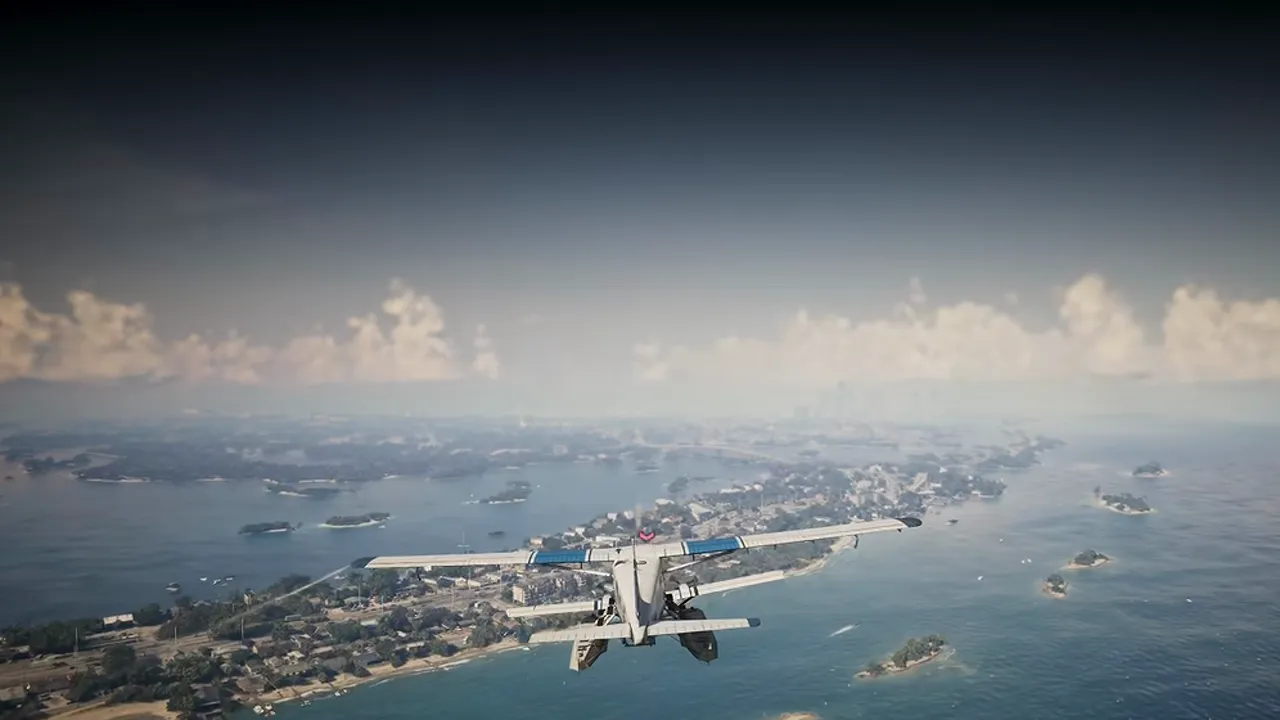
If GTA 6 looks flat, grey or oddly dark on your HDR TV even after you followed the in-game calibration exactly, it is probably not your TV. HDTVTest's Vincent Teoh measured the game on two professional reference monitors and found that the HDR calibration screen tells you one thing while the game does another.
What he found:
- GTA 6 ignores the system-level HDR calibration on PS5 and Xbox Series X|S. Only the three in-game sliders count: Max Brightness, Black Levels and Paper White.
- The sliders affect each other. Max Brightness only carries into gameplay accurately while Paper White stays at its default of 50 or higher. Lower Paper White and the real in-game peak drops: with Max Brightness on 1,000 the sun measured only about 600 nits.
- At the default Paper White of 50, menus and fade-to-white scenes measured around 350 nits, well above the ~203-nit reference white for dark-room HDR. That over-brightens midtones and makes the image look flatter.
- Below Paper White 50, raising Black Levels starts lifting the black floor, but leaving Black Levels at 0 crushed shadow detail in the prologue cutscene where Jason meets Lucia.
The starting settings (TVs that reach 1,000 nits or more):
1. Turn the room lights off. HDR10 is mastered for a dark room.
2. Pause, open Settings > Display > HDR Calibration.
3. Set Black Levels to 0, hide the UI and let your eyes adjust for a moment.
4. Raise Black Levels step by step until the checkerboard background just becomes visible. On Teoh's monitor that was 20.
5. Set Paper White to 35.
6. Set Max Brightness to 2,000. Yes, double your TV's rating: that is what gets the sun to about 1,000 nits in actual gameplay.
7. Check a cutscene and a sunny drive, and fine-tune from there.
Pure Xbox's rule of thumb for dimmer TVs is the same idea: set Max Brightness to roughly twice your TV's real peak (a 600-nit set would start around 1,200). Teoh stresses these are starting values, not final numbers, and that he is still testing consumer TVs for a brand-by-brand guide. Rockstar has not commented or announced a fix.
What it means for you:
Ignore whether the Rockstar logo in the test pattern disappears and judge the two boat-party sample images and real gameplay instead. If the picture still looks washed out, the TV side matters too (Game Mode, HGiG, dynamic tone mapping off). Our step-by-step fix list for a grey HDR picture is here: gta6bugs.com/bugs/gta-6-hdr-washed-out-grey-picture-fix
Grainy grey dots in the screen corners are a separate issue: gta6bugs.com/bugs/gta-6-grainy-gray-dots-screen-corners-hdr
All other display, camera and control settings: gta6bugs.com/guides/best-settings-gta-6-ps5-xbox
Source: HDTVTest (Vincent Teoh), hdtvtest.co.uk/news/is-gta-6-hdr-looking-flat-here-s-the-… ; also reported by Push Square and Pure Xbox.
Original source:HDTVTest
#hdr#settings#ps5#xbox#display
Discussion
Join the discussion
No account needed. Be civil, no personal info, no piracy or cheat links.
No replies yet. Can you reproduce it? Found a workaround? Start the thread.